
 By Siti Muinah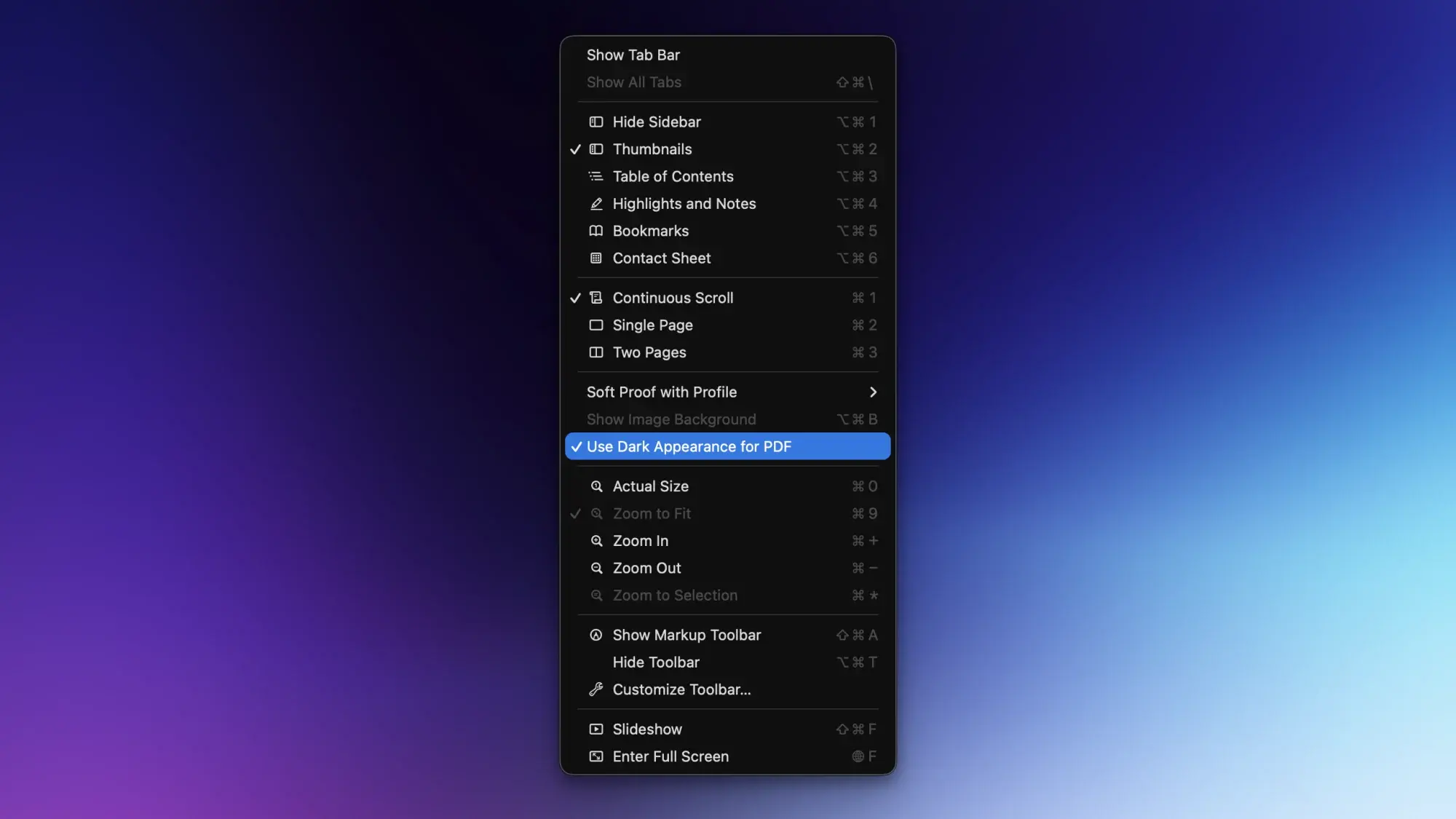
For many macOS users, Preview is little more than a gateway—a simple, utilitarian application that appears automatically when you double-click a JPEG or a PDF. It is the silent workhorse of the Apple ecosystem, often overshadowed by third-party productivity suites or specialized photo editors. However, beneath its minimalist, streamlined interface lies a robust engine capable of handling complex document management, image manipulation, and security tasks.
Whether you are a student managing research papers, a professional dealing with contracts, or a casual user looking to streamline your digital workflow, Preview offers a suite of "hidden" tools that can save you hours of work. By mastering these ten hacks, you can transform Preview from a mere file viewer into your primary document command center.
The Core Utility: Why Preview Matters
The primary strength of Preview is its ubiquity and efficiency. Because it is native to macOS, it utilizes system resources with surgical precision, rarely suffering from the bloat that plagues dedicated third-party software. Beyond basic viewing, it functions as a lightweight PDF editor, a powerful image processor, and a bridge between your physical paperwork and your digital archive.
Chronology of Development
Preview has evolved significantly since its inception in the early days of NeXTSTEP and the transition to macOS. What began as a simple "Display PostScript" viewer has matured into a sophisticated tool that integrates seamlessly with iCloud, Continuity Camera, and the system-wide Dark Mode. Its recent updates have focused on accessibility and advanced features, such as OCR (Optical Character Recognition) for text extraction and secure PDF encryption, making it a professional-grade tool hidden in plain sight.
1. Quick Look: The Art of Efficiency
The most frequent mistake users make is opening a file when they only need to view it. This wastes system memory and creates unnecessary clutter.
The Hack: Before you double-click a document, simply select the file in Finder and press the Spacebar. This invokes "Quick Look," a lightning-fast preview window powered by the same engine as the Preview app. You can cycle through folders of images or long PDFs without ever launching the actual application. If you require advanced folder-previewing capabilities, consider installing Folder Preview, a utility that bridges the gap for directory-level navigation.
2. Embracing the Dark Mode
Bright white document backgrounds can cause significant eye strain during late-night work sessions. While many modern apps have adopted dark modes, PDFs often remain stubbornly bright.

The Hack: Within Preview, navigate to View > Use Dark Appearance for PDF. This setting inverts the visual representation of your document without altering the file itself. Preview intelligently remembers this preference, ensuring that every subsequent document you open respects your ocular health. This functionality extends to the mobile ecosystem; on iOS and iPadOS, simply tap the three-dot icon in the top-right corner to toggle the Dark Background feature.
3. Streamlining Workflows: "Open from Clipboard"
Efficiency is often found in the small gaps between applications. If you are copying an image from a web browser or a chat application, there is no need to save it to your desktop just to edit it.
The Hack: Copy any image to your clipboard, launch Preview, and press Command + N. Preview will instantly generate a new document containing your clipboard data. This "New from Clipboard" feature is a massive time-saver for quick cropping, resizing, or annotating images before sending them to colleagues.
4. Background Removal: The Hidden Power Tool
You no longer need expensive subscriptions to software like Photoshop to perform basic object isolation.
The Hack: Open an image in Preview and press Command + Shift + K. This initiates the "Remove Background" tool. Alternatively, you can navigate to Tools > Remove Background. The app uses sophisticated heuristics to detect the subject and strip away the backdrop, allowing you to save the resulting image as a transparent PNG. It is a seamless, high-quality solution for creating assets for presentations or design projects.
5. OCR and Text Extraction
There is nothing more frustrating than needing to copy text from a scanned PDF that acts like a flat image.
The Hack: Preview includes built-in Optical Character Recognition (OCR). Even if a document appears to be a simple scan, try dragging your cursor over the text. You will find that Preview can often "read" the characters, allowing you to copy and paste them into a word processor. This works across macOS, iOS, and iPadOS, making your mobile devices just as capable as your desktop workstation.

6. The iPhone as a Document Scanner
The days of bulky desktop scanners are largely behind us, thanks to the integration between macOS and iOS.
The Hack: In Preview on your Mac, go to File > Import from iPhone > Scan Documents. Your iPhone will automatically activate its camera. Place your document in the frame; the device will automatically detect borders, correct perspective, and adjust lighting. Once you tap "Save," the document appears instantly on your Mac. This creates a high-fidelity digital record that is ready for signing or sharing.
7. Metadata Mastery
Every digital image carries a "digital fingerprint"—metadata that includes the camera model, lens settings, geolocation, and timestamps.
The Hack: Click the "i" (Inspector) button in the Preview toolbar. On a Mac, this opens a detailed breakdown of your file’s history. A critical warning: Before sharing photos on social media or public forums, check this data. If you wish to strip this sensitive information, right-click the image in Finder, select Quick Actions > Convert Image, and ensure the Preserve Metadata box is unchecked.
8. Masterful PDF Consolidation
Managing multiple documents often results in a disorganized desktop. Preview acts as a centralized hub for document assembly.
The Hack: To merge documents, open your primary PDF, enable the sidebar via the View > Thumbnails menu, and click the + icon at the bottom. Select Insert Page from File to append pages from other documents. If you need to remove pages, simply select the thumbnail and hit the Delete key. This functionality is equally robust on iPad, where the same sidebar swipe gesture provides identical control.
9. Digital Signatures: The End of Printing
Printing a document just to sign it and scan it back is an archaic workflow that Preview renders obsolete.

The Hack: Use the Form Filling Toolbar (the icon featuring a rectangle, dots, and a pencil). Select Add Signature. You can create your signature by signing your name on a trackpad, using a camera to scan a physical signature on paper, or drawing it on an iPhone/iPad screen. Once saved, this signature can be dragged and dropped onto any document, providing a professional look without the paper trail.
10. Robust PDF Security
Security is paramount when sharing contracts or sensitive information.
The Hack: You can password-protect your PDFs directly within Preview. Go to File > Export and click the Permissions button. Here, you can set an "Open" password to prevent unauthorized viewing and an "Owner" password to restrict editing, printing, or text copying. To remove these protections later, simply use the "Enter Password" function under the File menu to manage or delete the security settings.
Implications for Modern Computing
The beauty of these hacks lies in their accessibility. By utilizing the tools already integrated into macOS, users can bypass the subscription fatigue associated with modern software. Preview stands as a testament to Apple’s design philosophy: powerful, intuitive, and always at the ready.
As we move toward an increasingly paperless world, the ability to manipulate, secure, and organize digital documents with speed is a fundamental skill. Whether you are removing a background, digitizing a physical receipt, or encrypting a confidential contract, these Preview hacks ensure that you are working smarter, not harder. The next time you find yourself reaching for a third-party app, pause—Preview might already have the solution waiting for you.
 Layla Zulfa
  Asro
Asro  Reynand Wu