
 By Muslim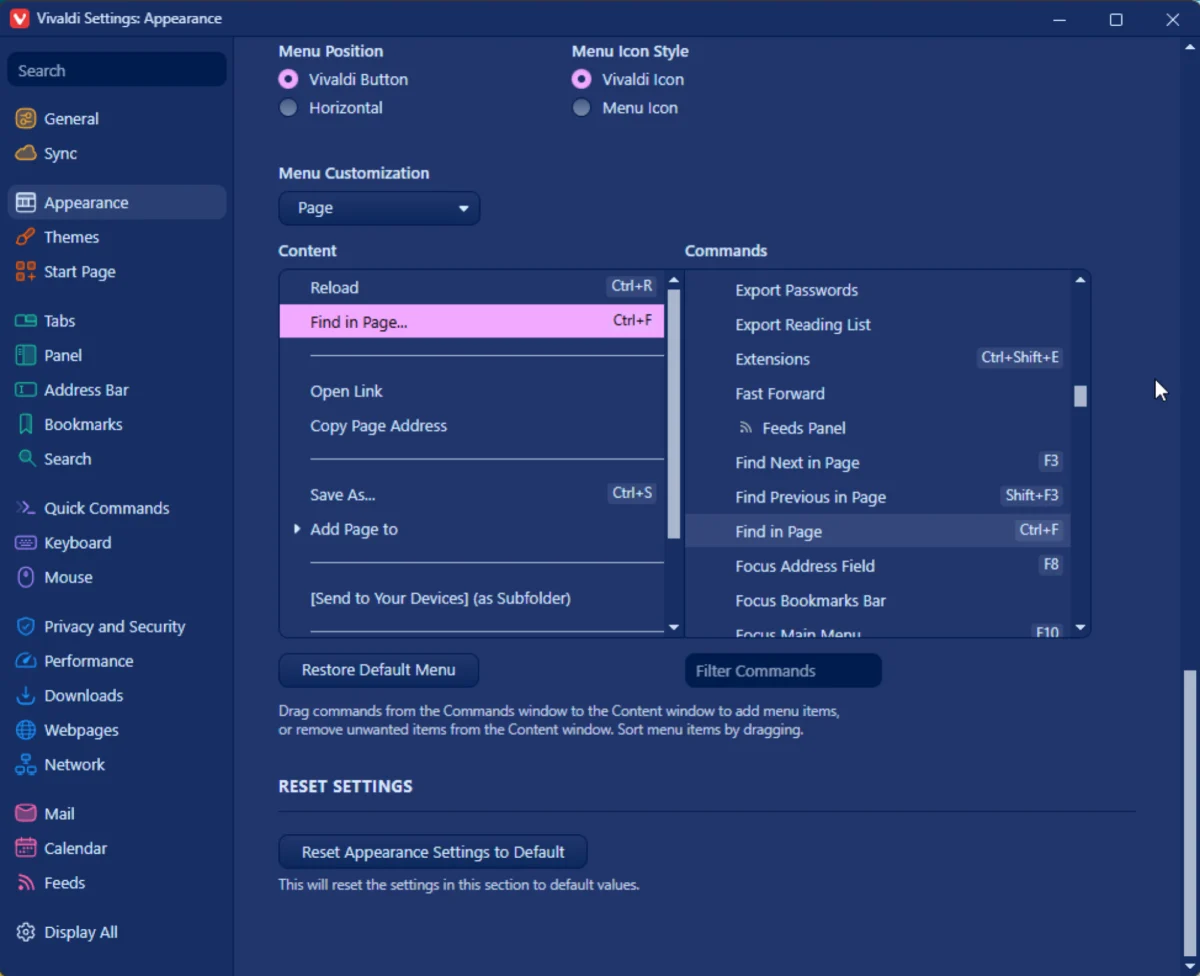
By Pranay Parab
Independent Tech Journalist
Published: September 17, 2026
1. Main Facts: The Power-User Alternative in a Chromium Monoculture
In the modern digital landscape, the web browser has quietly evolved from a simple window for viewing web pages into a fully fledged operating system. Yet, for the vast majority of internet users, choice has shrunk to a handful of tech giants: Google Chrome, Apple Safari, and Microsoft Edge. While these mainstream browsers dominate market share, they often force users to rely on a sprawling ecosystem of third-party extensions, external applications, and clunky workarounds to achieve advanced workflows.
Enter Vivaldi. Built upon the Chromium engine—ensuring complete compatibility with modern web standards—Vivaldi is a browser that rejects the minimalist dogma of its competitors. Instead, it embraces maximalism, packing a staggering array of native productivity tools directly into the core application.
Over a decade since its initial launch, Vivaldi has matured from a niche enthusiast project into one of the most complete, deeply customizable, and feature-rich browsing environments available across desktop and mobile platforms. For power users, researchers, and privacy-conscious individuals, mastering Vivaldi’s hidden capabilities unlocks a level of digital efficiency that traditional browsers simply cannot match out of the box.
2. Chronology: A Decade of Evolution and Adaptation
To understand how Vivaldi reached its current state of sophistication, it is essential to look back at its trajectory over the last ten years:
- Early 2010s: Following the direction taken by Opera Software (whose former CEO and co-founder, Jon Stephenson von Tetzchner, spearheaded the creation of Vivaldi), a vacuum emerged for power users who felt alienated by the homogenization of web browsers.
- 2016: Vivaldi officially launches its 1.0 stable release, promising unmatched tab management, customizability, and a built-in notes panel aimed at reclaiming the flexibility lost when Opera transitioned away from its classic Presto engine.
- Late 2010s to Early 2020s: Vivaldi aggressively expands its feature set, introducing native ad and tracker blocking, web panels, custom keyboard shortcuts, and pioneering visual tab stacks.
- Mid-2020s: The platform introduces Workspaces, Tiled Follower Tabs, and Command Chains, bridging the gap between basic web browsing and heavy-duty productivity automation.
- Recent Updates (2026): In a major technological coup, Vivaldi for Android bridges the desktop-mobile divide by introducing full support for Chrome extensions—bypassing restrictions found even in Google’s own mobile browser—cementing its status as a cross-platform powerhouse.
3. Supporting Data and Deep-Dive: The Best Vivaldi Hacks for Peak Productivity
For those willing to move past the default setup, Vivaldi offers an expansive suite of tools designed to streamline digital life, protect privacy, and conserve hardware resources. Below is an exhaustive breakdown of the best Vivaldi hacks and features available to modern users.

Use Chrome Extensions to Enhance Privacy in Vivaldi for Android
One of Vivaldi’s most astonishing mobile achievements is its support for Chrome extensions on Android—a feat Google itself has famously neglected to implement in Chrome for Android.
By leveraging this capability, mobile users can finally install powerful privacy tools on their phones or tablets.
- uBlock Origin Lite: Install this lightweight powerhouse to block intrusive advertisements and aggressive cross-site trackers.
- Decentraleyes: Evade tracking mechanisms embedded within centralized content delivery networks (CDNs).
- SponsorBlock: Automatically skip sponsored segments in YouTube videos while browsing on mobile.
How to set it up: Tap the puzzle piece icon located directly in the address bar, open the menu, and navigate to the Chrome Web Store to install your preferred extensions just as you would on a desktop computer.
Create Vivaldi Workspaces to Separate Work from Life
Context switching is one of the greatest productivity drains for modern knowledge workers. Having personal tabs, social media feeds, and deep-research articles mixed into a single window creates mental clutter and reduces focus.
Vivaldi’s Workspaces feature acts like dedicated virtual desktops exclusively for your browser tabs. You can group related tasks into distinct silos—such as "Research," "Long Reads," "Distractions," and "Social Media."
- How to set it up: Click the Workspaces button situated in the tab bar and select New Workspace. Assign it a name, then right-click any open tab and select Move > Workspace to route it instantly to its designated container.
Use Tiled "Follower Tabs" to Follow Links Without Losing Your Place
Researching online often involves opening dozens of rabbit-hole links, forcing you to constantly flip back and forth between tabs and lose your reading momentum.

Vivaldi solves this with Tiled Follower Tabs, which allow you to view a linked webpage in a split-screen side-by-side view alongside your primary reading material.
- How to use it: Open any webpage, right-click an outgoing link, and select Open Link in > Open Link as Tiled Follower Tab. You can also split your screen dynamically using standard tiled tab views.
Use Quick Commands for Instant Navigation and Automation
Mac users love Spotlight Search, and Windows users rely on PowerToys Run for system-wide utility. Vivaldi brings this exact philosophy directly into the browser via Quick Commands.
By pressing F2 (or Ctrl+E on Windows/Linux and Command+E on macOS), a floating search popover appears. Beyond functioning as a standard tab and history switcher, Quick Commands can perform inline math calculations, toggle system UI elements, or execute batch commands—such as the niche but invaluable "Copy all links" action.
Set Up Command Chains to Automate Repetitive Actions
For users who want to take automation a step further, Vivaldi features Command Chains. This allows you to string multiple browser actions together into a single custom macro.
- Example: A simple "Toggle Fullscreen and Reader View" chain creates an instant, distraction-free reading environment.
- How to set it up: Go to Settings > Quick Commands > Command Chains, click the + button, and sequence your desired actions. Once saved, summon your chain instantly by pressing F2 and typing its custom name.
Furthermore, Vivaldi offers granular menu customization. If you never use the Back/Forward buttons in your right-click context menus, you can swap them out for more functional commands like "Find in Page" by navigating to Vivaldi Settings > Appearance > Menu Customization.
Advanced Navigation: Caret Browsing and Mouse Gestures
For mouse-averse power users, Caret Browsing introduces a blinking text cursor to standard webpages (toggled via Shift+F7), enabling text highlighting, link selection, and page navigation purely via keyboard arrow keys—much like Microsoft Word or Google Docs.

Conversely, for mouse enthusiasts, Vivaldi allows custom Mouse Gestures. By going to Vivaldi Settings > Mouse, you can map specific stroke patterns (holding the right mouse button and moving the cursor in a designated shape) to execute complex browser commands instantly.
Laptop Battery and RAM Optimization
Running dozens of tabs can cripple laptop performance and drain battery life. Vivaldi combats this with built-in resource management tools located under Vivaldi Settings > Performance:
- Energy Saver: Configure Vivaldi to automatically engage power-saving protocols when your laptop battery drops to 20% or lower.
- Memory Saver: Enable Balanced Savings to automatically unload inactive background tabs from RAM, preventing sluggishness and significantly prolonging mobile computing battery life.
- Periodic Reload: For users tracking fast-moving news or live social feeds, right-clicking any tab allows you to set an automated refresh interval ranging from every minute up to 90 minutes.
4. Official Responses and Industry Perspectives
While Vivaldi does not command the massive marketing budgets of Google or Microsoft, its persistent growth has forced the broader tech industry to acknowledge the demand for power-user features.
Software engineers and open-source advocates frequently praise Vivaldi for demonstrating that chromium-based browsers do not have to mirror Chrome’s minimalist, data-harvesting paradigm. Browser developers note that Vivaldi’s implementation of mobile extension support and granular user-interface customization challenges the industry norm, proving that consumer software can cater to technical enthusiasts without alienating everyday users.
5. Implications: The Future of Modular Web Browsing
The enduring success of Vivaldi points to a broader shift in consumer software preferences. As big tech companies increasingly lock down their ecosystems, streamline features out of existence, and restrict user control in the name of simplicity, a counter-movement is quietly gaining momentum.
When a browser like Vivaldi can offer desktop-class extension support on mobile devices, native workspace organization, and deep automation tools without requiring external plugins, it redefines consumer expectations. The implication for the tech sector is clear: power users and privacy advocates are no longer willing to settle for stripped-down software. As digital workflows grow more complex, the future belongs to modular, highly customizable tools that put complete control back into the hands of the user.
 Nana
Nana  Layla Zulfa
  Asep Darmawan