
 By Nila Kartika Wati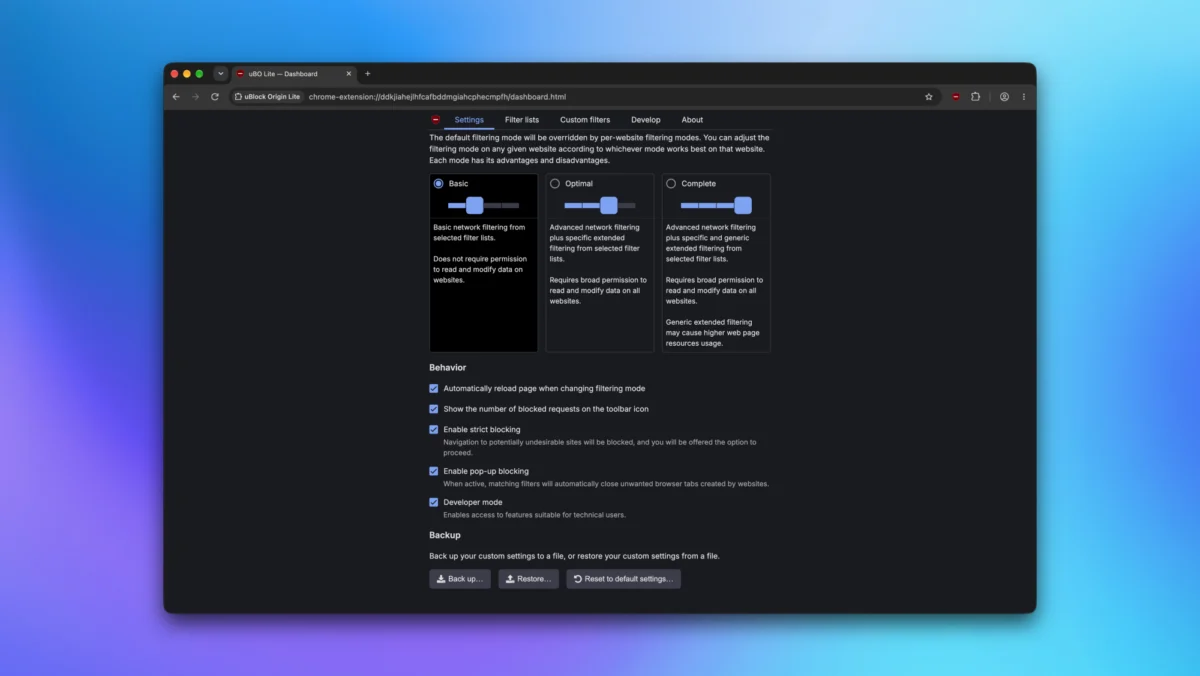
In the modern digital landscape, navigating the web without an effective ad blocker is akin to walking through a bazaar saturated with aggressive salespeople, pickpockets, and data harvesters. Among the pantheon of privacy tools, uBlock Origin has long reigned supreme. Lightweight, ruthlessly effective, and completely divorced from the shady business practices and monetization models that have compromised other extensions, it remains the gold standard for browser hygiene.
However, the technological ground beneath our feet is shifting. Google’s controversial push toward Manifest V3—a new extension architecture for Chromium-based browsers—has fundamentally altered how ad blockers operate, hobbling traditional content filtering methods.
In response to this paradigm shift, the developers behind uBlock Origin split the project into two distinct product lines: the classic uBlock Origin (primarily optimized for Firefox across desktops, laptops, and Android) and uBlock Origin Lite (tailored for Chromium-based browsers and Safari on Apple devices).
Whether you are running the full-fat Firefox version or the stripped-down Lite iteration, mastering the hidden depths of uBlock Origin can radically transform your browsing experience. Here are the essential hacks, configurations, and hidden features you need to know to take absolute control of your digital footprint.
1. Main Facts: Understanding the Split and the Core Mechanics
To fully leverage uBlock Origin, users must first understand the architectural divide between the two versions.
- uBlock Origin (The Classic): This is the uncompromising, full-featured extension built primarily for Mozilla Firefox. Because Firefox has maintained support for older extension APIs (Manifest V2), uBlock Origin retains deep, low-level access to network requests. This allows it to block, modify, and intercept web elements with surgical precision before they ever render on your screen.
- uBlock Origin Lite (The Modern Alternative): Designed for Google Chrome, Microsoft Edge, Brave, and Safari, the "Lite" version operates within the constraints of Manifest V3. Instead of actively intercepting and modifying live network traffic on the fly, uBlock Origin Lite relies on declarative net requests—essentially handing a rulebook to the browser and letting the browser itself handle the blocking.
Despite these differences, both versions share a robust DNA focused on user sovereignty, minimal memory consumption, and extreme configurability.
2. Chronology: The Evolution from Full Power to Manifest V3 Adaptation
The journey of content blocking has been a continuous arms race between web publishers and privacy advocates.
- Pre-2018: Traditional ad blockers relied heavily on blocking network requests using straightforward blocklists. However, as web tracking evolved to inject ads dynamically via first-party scripts and complex JavaScript frameworks, simple blocklists became insufficient.
- The Rise of uBlock Origin: Gorhill (Raymond Hill) developed uBlock Origin as an efficient alternative to bloated blockers like AdBlock Plus. It quickly gained a massive following due to its remarkably low CPU and RAM usage.
- The Google Manifest V3 Announcement: Google announced its transition to Manifest V3, promising improved security and privacy. However, privacy advocates and extension developers quickly realized the new framework severely limited the capabilities of dynamic content blockers by capping the number of static rules and removing blocking web request APIs.
- The Birth of Lite: Recognizing that Chromium users would face a degraded blocking experience, the uBlock Origin team developed uBlock Origin Lite. Released to adapt to the new reality, it brought permission-less, declarative filtering to millions of Chrome and Safari users.
3. Supporting Data: The Privacy Cost of Modern Browsing
Data privacy metrics underscore why advanced configuration of tools like uBlock Origin is no longer optional—it is a necessity.
Recent telemetry studies on web tracking indicate that the average news or e-commerce site loads between 40 to 80 distinct third-party tracking scripts upon a single visit. These scripts harvest everything from hardware specifications and mouse-movement vectors to precise geographic coordinates.

Furthermore, the rise of intrusive cookie consent banners has introduced hundreds of milliseconds of latency to page load times while manipulating users into "consent dark patterns." By enabling targeted blocklists within uBlock Origin—such as cookie notice removers and AI summary filters—users routinely see page load times decrease by 30% to 50%, alongside a dramatic reduction in background data consumption.
4. Official Responses and Industry Implications
The transition to Manifest V3 and the fragmentation of the ad-blocking ecosystem have drawn sharp criticism from both open-source developers and privacy advocacy groups across the tech sector.
When Google first outlined its transition timeline, electronic rights organizations argued that restricting content blockers under the guise of security was an anti-competitive move designed to protect Google’s core advertising revenue streams. Google, for its part, maintained that Manifest V3 improves overall browser performance and user security by preventing extensions from executing arbitrary, remotely hosted code.
The open-source community’s response—exemplified by the creation of uBlock Origin Lite—demonstrates resilience in the face of corporate gatekeeping. However, industry analysts note that the divergence between Firefox and Chromium ecosystems creates a fragmented user experience. Power users increasingly gravitate toward Firefox not merely for philosophical reasons, but because it remains the only mainstream platform where tools like uBlock Origin can operate at peak efficiency without artificial software handicaps.
5. Practical Implementation: 10 Essential uBlock Origin Hacks
With the background established, let us dive into the practical configurations that will elevate your browsing experience.
Use uBlock Origin Lite’s Basic Filters for Zero-Access Browsing
When setting up uBlock Origin Lite on Chrome or Safari, you are greeted with three distinct filtering tiers: Basic, Optimal, and Complete.
- The Hack: Select the "Basic" level. While it blocks fewer edge-case ads, it operates without requiring broad permission to read and change all your data on all websites. In an era where nearly every extension demands sweeping permissions, utilizing basic declarative rules is a masterclass in minimizing your digital attack surface.
Obliterate Annoying Cookie Banners Automatically
Nothing ruins the modern web quite like intrusive legal compliance pop-ups demanding cookie consent. Both versions of uBlock Origin feature built-in lists to eradicate these annoyances.
- The Hack: Click the extension icon in your toolbar, select the gear icon to open the dashboard, navigate to the Filter lists tab, expand the built-in categories, and check EasyList/uBO — Cookie Notices. Most irritating consent overlays will instantly vanish from your browsing sessions.
Master the Element Zapper for Instant Page Cleanup
Sometimes an ad or a distracting social media widget slips past automated blocklists. You do not need to write custom CSS to fix this; uBlock Origin features built-in surgical tools.
- The Hack: Click the extension icon and select the lightning icon (Element Zapper). Simply click on the distracting element (such as a floating video player or a comment section), and it instantly evaporates from the DOM.
- Advanced Firefox Trick: Use the eyedropper tool (Element Picker). This allows you to select an element and utilize a dropdown menu to target broader CSS classes, letting you wipe out entire classes of sponsored widgets across a site with surgical precision.
One-Click JavaScript Disabling for Ultimate Firefox Privacy
JavaScript is the engine of the modern web, but it is also the primary vector for browser fingerprinting, aggressive tracking, and malicious scripts.

- The Hack: In Firefox, open a privacy-hostile webpage, click the uBlock Origin toolbar icon, and click the
>(no-script) icon. Reload the page. Firefox will render the site entirely without executing JavaScript. Warning: This may break complex web applications, but it is an unmatched weapon for reading text-heavy articles without being tracked.
Bypass Web Page Breaks with Single-Page Disabling Shortcuts
Occasionally, an aggressive blocklist will break the login button, checkout cart, or media player on a site you actually trust.
- The Hack: In Firefox, hold down the Ctrl key on your keyboard while clicking the large power button icon in the uBlock Origin popup. Reload the page, and the extension will be disabled exclusively for that specific domain, sparing you the hassle of disabling global protection.
Curb Data Usage by Blocking Heavy Media Elements
If you are tethering from a mobile hotspot or traveling on a metered connection, bloated media elements can chew through your data allowance in minutes.
- The Hack: In the Firefox version of uBlock Origin, click the film reel icon in the popup menu to block heavy media elements on a single page, or head to the Settings tab in the dashboard. Scroll down to "Default behavior," check Block media elements larger than, and specify a threshold in kilobytes (e.g.,
50KB). Images and videos exceeding this size will be replaced with placeholders.
Banish Google’s AI-Generated Search Summaries
Google’s Search Generative Experience (SGE) and AI-driven summaries often push organic search results below the fold while offering unverified or hallucinated summaries.
- The Hack: Open uBlock Origin settings, go to the Filter lists tab, and enable EasyList — AI Widgets. Once active, perform a search on Google, and watch as the intrusive AI summary blocks are cleanly excised from your results page.
Sync Your Settings Across Devices
Configuring custom filters, whitelists, and preferences repeatedly across multiple computers is a tedious chore.
- The Hack: If you are using Firefox, navigate to uBlock Origin’s settings and check Enable cloud storage support. Your configuration will sync automatically across all devices linked to your Firefox account. For manual control across both Lite and classic versions, use the Back up button in the settings dashboard to export your configuration to a JSON file, and use Restore on your other browsers.
Stop Click-Tracking with URL Tracking Protection
Many major social media platforms and news outlets append tracking parameters to shared links (such as utm_ tags or specific click-ID parameters) to track your browsing habits across different domains.
- The Hack: Open the uBlock Origin dashboard, go to Filter lists, and enable AdGuard/uBO — URL Tracking Protection. This automatically strips tracking parameters from URLs as you navigate, preventing third parties from building a continuous behavioral dossier.
Deploy Region-Specific Blocklists for International Browsing
If you frequently read foreign news outlets, regional blogs, or international e-commerce platforms, standard American or global blocklists may miss hyper-local ad servers and trackers.
- The Hack: In the uBlock Origin Filter lists tab, click the Regions, languages dropdown. This reveals an extensive catalog of country-specific blocklists. Check the regions you frequently visit to ensure your privacy coverage is truly global.
Conclusion
uBlock Origin is far more than a simple set-it-and-forget-it ad blocker. By moving beyond default settings and tapping into element zappers, JavaScript toggles, AI-blocking filters, and cloud synchronization, you can reclaim your browser from the forces of surveillance capitalism. Whether you are adapting to the constraints of Manifest V3 with uBlock Origin Lite or wielding the unbridled power of the classic extension on Firefox, these ten hacks ensure your web experience remains fast, private, and entirely under your command.
 Layla Zulfa
  rifanmuazin